
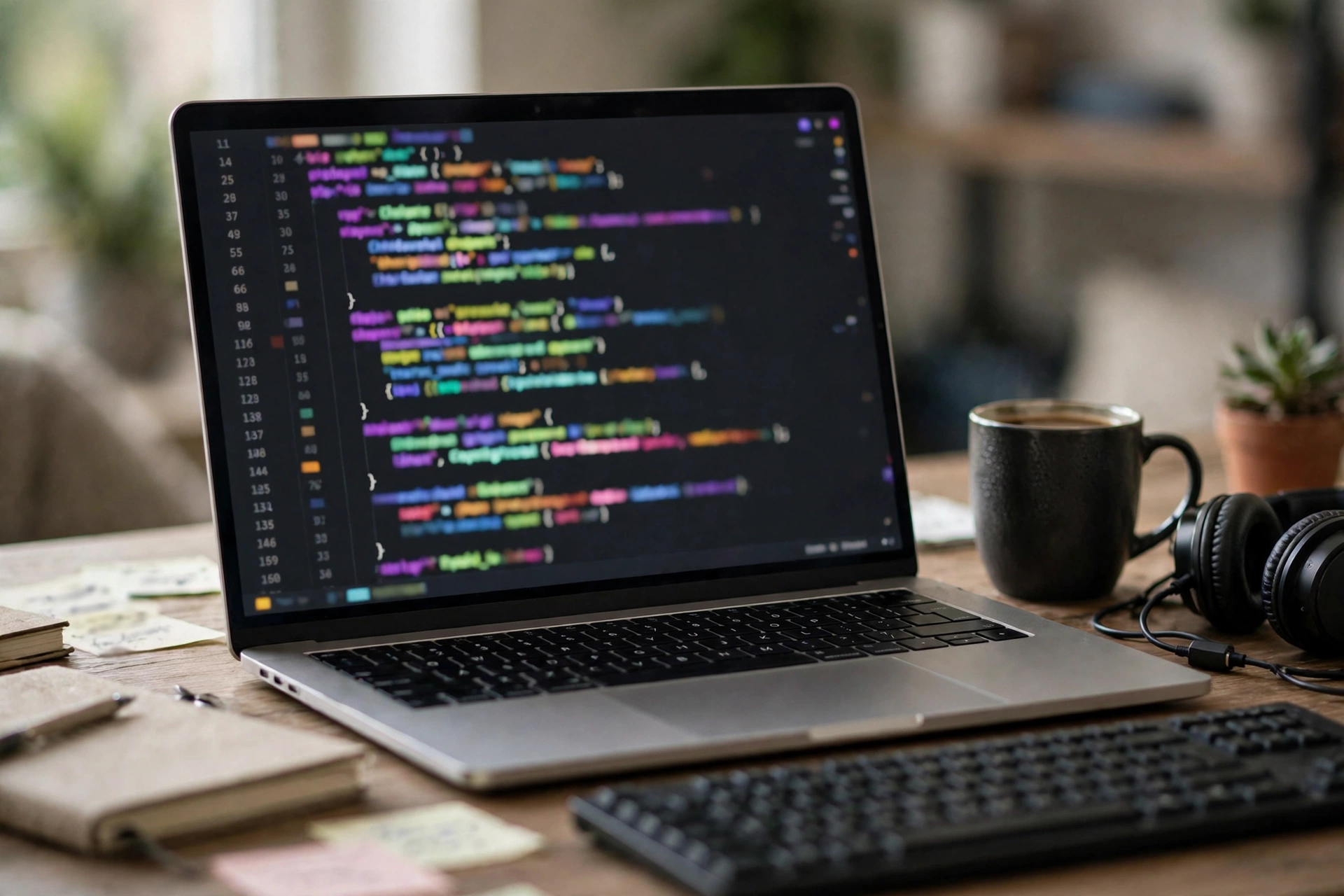
Visual Studio Code — usually called VS Code — is the code editor most developers use, and it is completely free. Built by Microsoft, it runs on Windows, Mac and Linux, and it supports nearly every programming language through extensions. Whether you are learning to code, building a website or working as a professional developer, VS Code is the tool you will most likely end up using. This beginner’s guide explains what VS Code is, how to install it, the features that matter most, and the extensions that make it even better.
- VS Code is a free, lightweight code editor from Microsoft, available on Windows, Mac and Linux.
- It supports almost every language through extensions, and the extension marketplace is its biggest strength.
- Built-in features include IntelliSense (smart autocomplete), debugging, Git integration and an integrated terminal.
- Beginners should learn the Command Palette, the file explorer and a handful of keyboard shortcuts first.
- It is free forever — there is no paid version or locked feature.
What Is Visual Studio Code?
Visual Studio Code is a source-code editor. That means it is a program for writing and editing code, with features designed for programmers: syntax highlighting (different colours for different parts of your code), error detection, autocomplete, and tools for running and testing your work. It is not the same as Visual Studio, Microsoft’s much larger development environment — VS Code is lighter, faster and simpler, which is why it has become so popular. According to developer surveys, it is the most widely used editor in the world, ahead of every alternative. If you are learning to code, our how to learn Spanish guide shows the same structured-learning approach applied to a language — the method transfers well to programming.
How to Install VS Code
Installation takes about two minutes. Go to code.visualstudio.com, download the version for your operating system, and run the installer. On Windows, tick the “Add to PATH” and “Open with Code” options during setup — they add useful right-click options. On Mac, drag the app into your Applications folder. On Linux, use the .deb or .rpm package from the same download page. Once installed, open VS Code and you will see a welcome screen with links to tutorials. You do not need an account or a licence. It is free, and there is no trial period or upsell.
The Features That Matter Most
VS Code’s power comes from a few core features. IntelliSense is smart autocomplete: as you type, it suggests code, function names and variables, and it catches errors before you run anything. The integrated terminal lets you run commands without leaving the editor — press Ctrl + ` (backtick) to open it. Git integration is built in: you can see changed files, commit and push from the sidebar, with no extra tool needed. Debugging is also built in for languages like JavaScript and Python, with breakpoints and variable inspection. And the Command Palette (Ctrl+Shift+P or Cmd+Shift+P) lets you run any command by typing its name — it is the fastest way to do almost anything in VS Code, and it is the first thing every beginner should learn.
Workspaces, Folders and Files
VS Code works with folders, not single files. Open a folder (File > Open Folder) and the Explorer sidebar shows all the files in your project. You can create, rename and delete files from there, and open several files in tabs at the top. Settings can be changed per project (a .vscode folder in your project) or globally. This folder-based approach is how real projects work, so learning it early is a genuine advantage. For a broader sense of the tools developers use, our guide to what is an API explains one of the concepts you will meet constantly, and what is a VPN covers a tool many developers use daily.
Extensions: The Real Superpower
Extensions are add-ons that extend VS Code, and there are tens of thousands of them in the built-in marketplace. For beginners, the useful ones fall into a few groups: language support (Python, Java, C++ and others install automatically when you open a file in that language), themes and icons (make the editor look the way you like), formatters like Prettier (which tidy your code automatically), and linters like ESLint (which flag mistakes). Popular general-purpose extensions include Live Server (preview web pages instantly as you edit), GitLens (shows who changed each line of code and when), and indent-rainbow (makes nested code easier to read). Install extensions from the Extensions view in the sidebar (Ctrl+Shift+X), and do not overdo it: ten good extensions beat fifty you never use.
VS Code for Different Languages
VS Code works well for almost every popular language. For web development (HTML, CSS, JavaScript), it is the default choice, with Emmet shortcuts built in for writing HTML quickly. For Python, the official Python extension adds debugging, testing and virtual-environment support. For Java, C#, Go, Rust and others, there are official or community extensions that add the same depth. The editor itself stays the same, so once you learn VS Code, you can switch languages without learning a new tool. That is a large part of its appeal: one editor, every language.
VS Code vs Other Editors
The main alternatives are Sublime Text (fast and light, but with fewer features out of the box), JetBrains IDEs like IntelliJ and PyCharm (more powerful for large projects, but heavier and partly paid), and newer AI-focused editors. VS Code wins on balance: it is free, fast enough for most work, and its extension ecosystem means it can grow with you from your first “Hello, World” to professional work. The one real weakness is that very large projects can feel slower than in a dedicated IDE — but for most developers, that never becomes an issue.
Your First Hour With VS Code
Here is a simple first hour: install it, open a folder, create a file called index.html, type “!” and press Tab (Emmet will generate a full HTML page), and open it with Live Server to see it in your browser. Then open the Command Palette, change the colour theme, install Prettier, and write a small Python file to see IntelliSense in action. In one hour you will have used the editor, the terminal, extensions and themes — and you will understand why so many developers never leave it. If you want to go further, how to start a blog is a good next project: a blog is one of the best first things to build with code, and VS Code is the tool to build it with.
Frequently Asked Questions
Is Visual Studio Code free?
Yes, completely free. There is no paid version, no trial and no locked feature. Microsoft provides it free, and the extension marketplace is also free to browse.
Is Visual Studio Code the same as Visual Studio?
No. Visual Studio Code is a lightweight code editor; Visual Studio is a much larger, full-featured development environment. They share a name and a maker, but they are different tools.
What languages does VS Code support?
Almost all of them, through extensions: JavaScript, Python, Java, C++, C#, Go, Rust, PHP, HTML, CSS and many more. Language support installs automatically when you open a file in that language.
Can beginners use Visual Studio Code?
Yes — it is one of the best editors for beginners. It is free, simple to install, and the built-in tutorials and huge community mean help is always available.
Do I need extensions to use VS Code?
No. VS Code works well out of the box. Extensions add power for specific languages and workflows, but you can start coding immediately with the default setup.
1 thought on “Visual Studio Code: The Beginner’s Guide for 2026”