
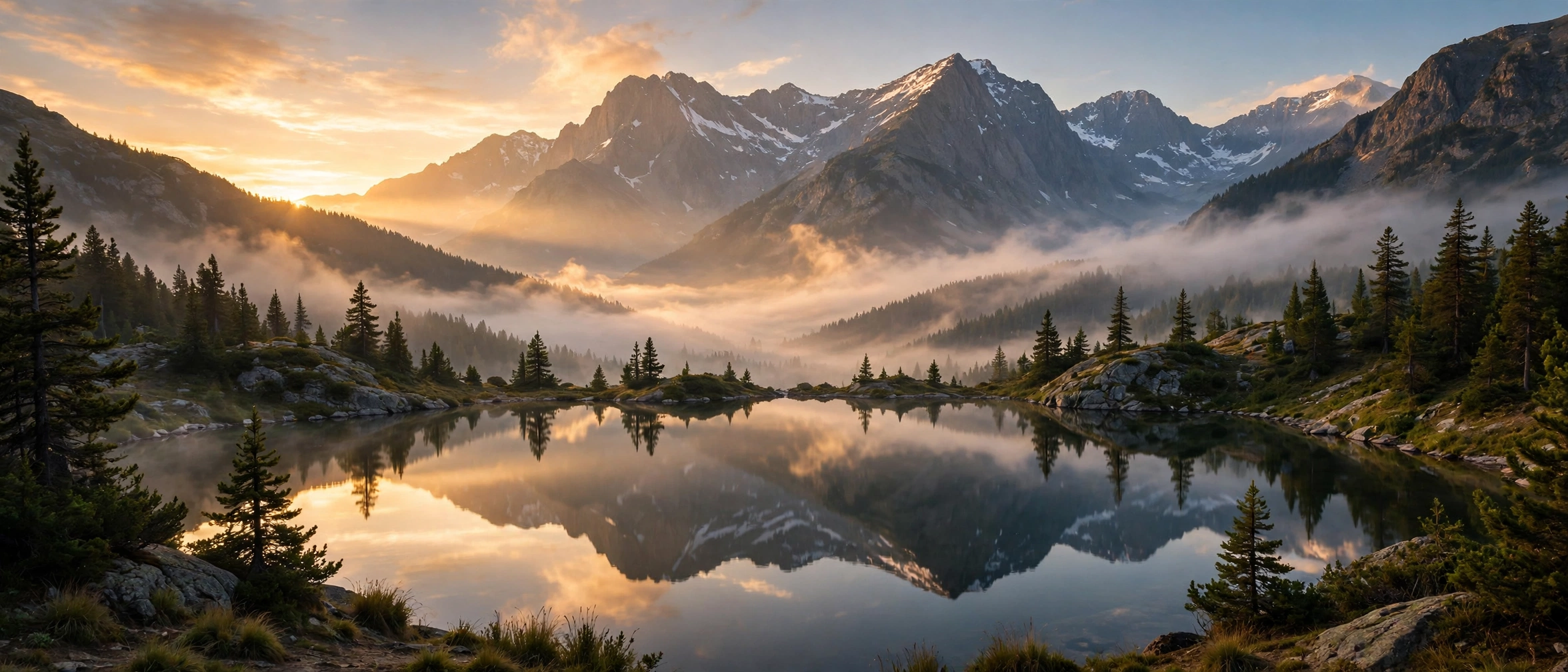

You look at your computer screen for hours every day, and the wallpaper is the first thing you see every time you sit down. Yet most people never change it from the default. Finding good wallpaper for computer screens is easy once you know where to look — and the best sources are free, high quality, and completely legal. This guide covers the best places to download free HD wallpapers, how to pick the right size for your screen, and the styles that actually look good as a desktop background.
- Unsplash, Pexels, and WallpaperAccess offer free high-resolution wallpapers with no sign-up.
- Match the wallpaper resolution to your screen — 1920×1080 for Full HD, 2560×1440 for QHD, 3840×2160 for 4K.
- Dark, simple wallpapers with space on one side work best — busy images hide your icons.
- Dynamic and live wallpapers look great but use more battery on laptops.
- Always download from reputable sites — random wallpaper sites are a common source of malware.
Wallpaper for Computer: The Best Free Sources
The best place to start for wallpaper for computer screens is Unsplash. It is a photography site, not a wallpaper site, which is exactly why it works: the images are real photographs, shot by real photographers, in resolutions up to 4K and beyond, and they are free to download with no account. Search for anything — mountains, cities, oceans, minimal abstract — and you will find dozens of images good enough for a desktop. Pexels works the same way, with a similar library and the same free licence.
For wallpapers made specifically for desktops, WallpaperAccess and WallpaperCave have enormous collections organised by category: nature, space, anime, cars, gaming, minimal, and hundreds more. The quality varies, so check the resolution before you download — a good wallpaper should match or exceed your screen’s resolution. If you want something more curated, the built-in wallpaper collections in Windows and macOS are surprisingly good, and the Bing daily wallpaper feature gives you a new image every day without you having to think about it. If you like the idea of a screen that changes with the seasons, our Christmas nail designs are seasonal in a different medium — but the principle is the same: change it when the season changes, and it never gets boring.
What Size Wallpaper Do You Need?
Size matters more than most people realise. A wallpaper that is smaller than your screen gets stretched and looks blurry; a wallpaper that is much larger gets cropped, and you lose the best part of the image. The fix is simple: match the wallpaper to your screen’s resolution. For a standard Full HD screen, that is 1920×1080. For a QHD screen, 2560×1440. For a 4K screen, 3840×2160. You can find your screen’s resolution in your display settings — on Windows, right-click the desktop and choose Display settings; on Mac, go to System Settings and Displays.
Ultrawide monitors need special attention: a standard 1920×1080 wallpaper on a 3440×1440 ultrawide will stretch badly. Search specifically for ultrawide wallpapers, or use a site that lets you filter by resolution. The same goes for dual monitors — a single wallpaper stretched across two screens usually looks wrong, and you are better off with a panoramic image designed for dual setups, or a different wallpaper on each screen. If you work from home and your screen is your office, our home office decor ideas cover the physical space around the screen, which matters just as much as what is on it.
How to set a wallpaper on Windows and Mac
On Windows, right-click any image file and choose “Set as desktop background,” or go to Settings, Personalisation, Background, and pick the image. Windows also lets you set a slideshow that rotates through a folder of images, which is the easiest way to keep your desktop fresh. On Mac, open System Settings, go to Wallpaper, and drag in an image, or right-click an image in Finder and choose “Set Desktop Picture.” Both systems let you choose how the image fits — fill, fit, stretch, or centre — and “fill” is usually the best choice, since it crops the image to your screen without distorting it.
What Makes a Good Computer Wallpaper?
The best wallpapers share three qualities. First, they are simple. A busy, detailed image looks great in a gallery and terrible as a desktop, because your icons, windows, and taskbar are sitting on top of it. The best wallpapers have a clear focal point and a lot of empty space — a mountain on one side, a plain sky on the other, where your icons can live. Second, they are dark enough, or have a dark area, so that white text and icons stay readable. A bright white wallpaper with white icons is unreadable, and a very dark wallpaper makes everything look moody.
Third, they are the right mood for how you use your computer. A calm landscape helps you focus; a bright, energetic image is better if you use your computer for fun. Minimal and abstract wallpapers are the most popular for a reason — they look good, they do not distract, and they work with any icon layout. If you want a change but do not know where to start, try a dark, minimal landscape in your favourite colour, and see how it feels after a week. You can always change it. For a screen setup that looks good in real life too, our best budget office chairs guide covers the other half of the desk setup.
Live and Dynamic Wallpapers: Worth It?
Live wallpapers — animated images that move on your desktop — look impressive, and they are easy to set up on both Windows and Mac with free apps like Lively Wallpaper or the built-in dynamic wallpapers on macOS. A slowly moving ocean, a drifting cloud, or a subtle animation can make a desktop feel alive. But they come with a cost: they use CPU and battery, they can slow down an older computer, and they are distracting if you are trying to work. On a desktop PC with plenty of power, they are fine. On a laptop, they will eat your battery.
Dynamic wallpapers, which change with the time of day — light in the morning, dark at night — are a better compromise. macOS has them built in, and Windows users can get the same effect with free apps. They give you the variety of a changing wallpaper without the constant motion, and they are easy on battery. If you want something simple and reliable, a slideshow that rotates through a folder of your favourite still images every hour is the best option of all: it keeps the desktop fresh, it costs nothing in performance, and it never gets boring.
Frequently Asked Questions
Where can I download free wallpaper for my computer?
Unsplash, Pexels, WallpaperAccess, and WallpaperCave all offer free high-resolution wallpapers. Unsplash and Pexels have the best photography; WallpaperAccess and WallpaperCave have the largest desktop-specific collections.
What resolution wallpaper do I need?
Match your screen: 1920×1080 for Full HD, 2560×1440 for QHD, 3840×2160 for 4K. Check your display settings to find your screen’s resolution before downloading.
How do I set a wallpaper on Windows?
Right-click the image and choose “Set as desktop background,” or go to Settings, Personalisation, Background. You can also set a slideshow that rotates through a folder of images.
Are live wallpapers bad for my computer?
They use CPU and battery, so they can slow down older computers and drain laptop batteries. Dynamic wallpapers that change with the time of day are a lighter alternative.
Is it safe to download wallpapers from any website?
No. Stick to reputable sites like Unsplash, Pexels, and WallpaperAccess. Random wallpaper sites are a common source of malware and pop-up ads.
The right wallpaper for computer screens is the one you forget about while you work and smile at when you sit down. Find a high-resolution image you love, match it to your screen, keep it simple enough for your icons, and change it when the season changes. Your screen is the most-looked-at surface in your life — it is worth thirty seconds to make it beautiful.