
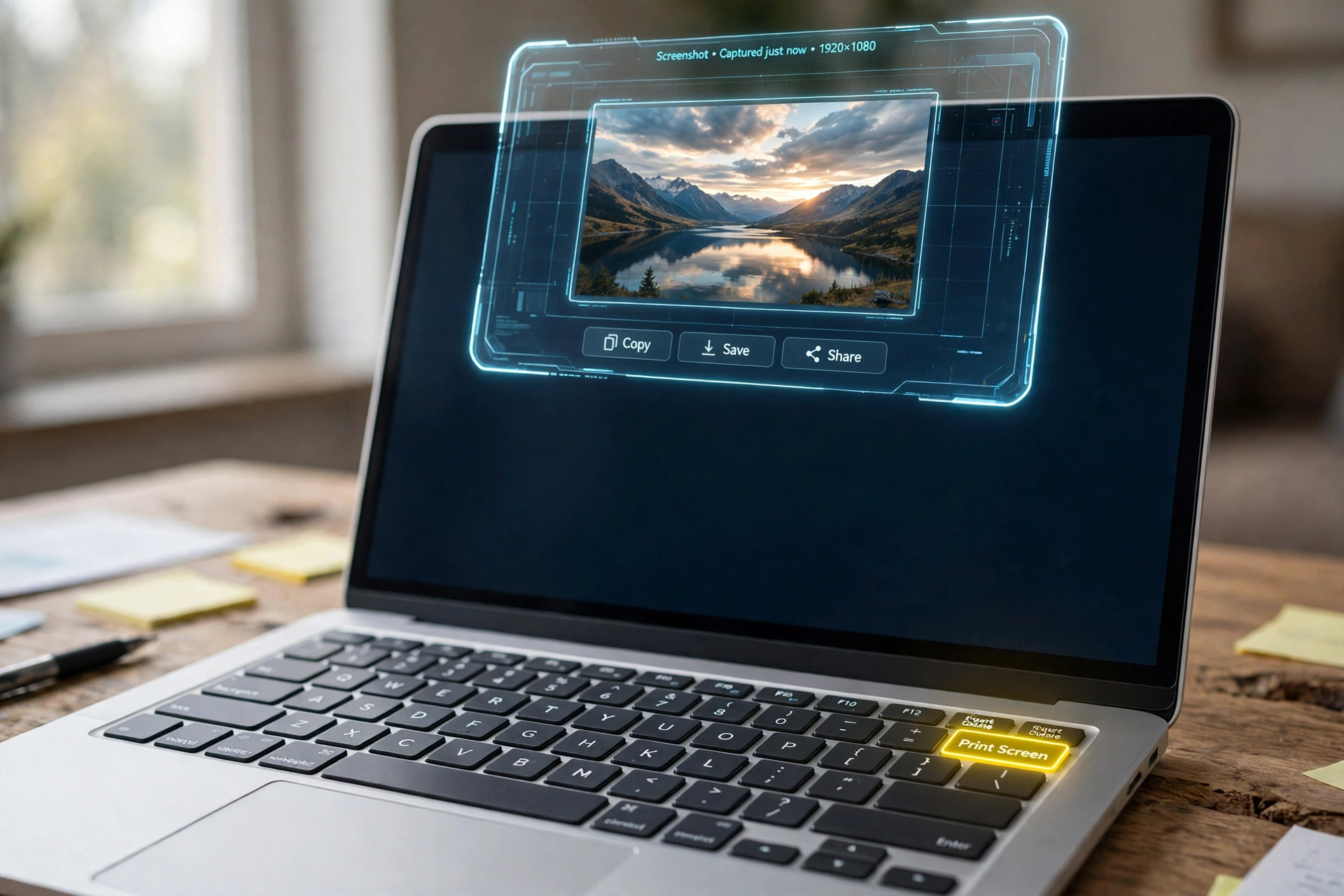

Everyone needs a screenshot sooner or later: an error message to send to support, a receipt to save, a funny chat to share, or a slide to keep for later. The good news is that how to screenshot on windows has a simple answer — Windows includes several free tools built in, and you do not need to install anything. This guide covers all seven methods, from the fastest keyboard shortcut to the most flexible capture tool, plus where your screenshots are saved and how to fix it when a shortcut seems to do nothing.
- Windows key + Print Screen is the fastest full-screen method — it saves the image automatically to your Pictures > Screenshots folder.
- Windows key + Shift + S opens the Snipping Tool overlay for capturing a rectangle, a window, or the full screen.
- Alt + Print Screen captures only the active window, which is ideal for sharing one app without showing the rest of your desktop.
- The Snipping Tool app (built into Windows 10 and 11) adds a delay timer, annotation, and screen recording.
- If Print Screen seems to do nothing, the image is on your clipboard — paste it with Ctrl + V into any app.
How to Screenshot on Windows With Keyboard Shortcuts
The quickest method is Windows key + Print Screen (sometimes labelled PrtScn). Press both together and the screen dims briefly — that flash means the screenshot was taken and saved automatically as a PNG file in Pictures > Screenshots. It is the best option when you want the whole screen and you want the file saved without extra steps.
Plain Print Screen on its own also captures the whole screen, but it copies the image to your clipboard instead of saving a file. To use it, open Paint, Word, an email, or any app and press Ctrl + V to paste. This trips up a lot of people: the shortcut worked, but nothing visible happened, because the image is sitting on the clipboard waiting to be pasted. Alt + Print Screen works the same way but captures only the window you are currently using — perfect for sharing one app without exposing your other open windows or desktop clutter.
How to Screenshot on Windows With the Snipping Tool
For anything more precise, use the Snipping Tool, which is built into Windows 10 and Windows 11. Press Windows key + Shift + S and the screen dims with a small toolbar at the top: rectangular snip, freeform snip, window snip, or full-screen snip. Drag a rectangle around exactly what you need, and the capture goes to your clipboard and to a notification you can click to edit, annotate, crop, and save.
Open the full Snipping Tool app (search “Snipping Tool” in the Start menu) for more power: a delay timer of 3 or 10 seconds, so you can capture menus that disappear when you click away, plus pen and highlighter tools for marking up the image before you save it. The app can also record your screen as a video, which is handy for showing someone how to do something step by step. If you spend your days in front of a screen, a comfortable setup matters — our best decor ideas for a home office can make long computer sessions far more pleasant.
Other Ways to Screenshot on Windows
Two more built-in options cover special cases. The Xbox Game Bar (Windows key + G) captures screenshots and recordings of games and apps — press Windows key + Alt + Print Screen inside it to grab a shot, which saves to Videos > Captures. It is the best choice for gaming screenshots. And if you need a screenshot of a whole scrolling web page, use your browser: in Edge, press Ctrl + Shift + S for the built-in web capture tool, which can save a full-page screenshot; Chrome users can use the “Capture full size screenshot” option in DevTools.
Third-party tools such as ShareX (free) and Greenshot (free) add features like automatic uploading, scrolling captures, and custom shortcuts — worth installing only if you take screenshots all day for work. For everyone else, the built-in tools are faster and there is nothing to install, update, or pay for.
Where Screenshots Are Saved and How to Find Them
Screenshots taken with Windows key + Print Screen land in Pictures > Screenshots. Snipping Tool captures that you save go wherever you choose in the save dialog. Clipboard-only captures (plain Print Screen, Alt + Print Screen, Windows + Shift + S) are not saved as files at all until you paste or save them — so if you take one and then take another, the first is gone. Get into the habit of saving or pasting immediately after each capture.
One common problem: the Print Screen key does nothing at all. On many laptops, Print Screen shares a key with another function, so you may need to hold Fn + Print Screen instead. Some keyboards also let you change the Print Screen key’s behaviour in Settings > Accessibility > Keyboard, where you can set it to open the Snipping Tool directly. And if your screenshots are part of a bigger workflow — documenting a project, building a guide, or learning a new skill — our guide on how to study effectively has techniques for organising reference material so you can actually find it later, and our best budget microphones picks help if your screenshots turn into video tutorials.
Frequently Asked Questions
What is the fastest way to screenshot on Windows?
Press Windows key + Print Screen. It captures the full screen and saves it automatically as a PNG in Pictures > Screenshots — no pasting or extra steps needed.
How do I screenshot part of the screen on Windows?
Press Windows key + Shift + S, then drag a rectangle around the area you want. The capture goes to your clipboard; click the notification to annotate and save it.
Why does Print Screen not work on my laptop?
On many laptops the Print Screen key needs the Fn key held as well — try Fn + Print Screen. You can also set Print Screen to open the Snipping Tool in Settings > Accessibility > Keyboard.
Where do Windows screenshots go?
Windows key + Print Screen saves to Pictures > Screenshots. Other methods copy to the clipboard only, so you must paste (Ctrl + V) or save the image yourself.
Can I screenshot a scrolling web page on Windows?
Yes. In Edge, press Ctrl + Shift + S and choose “Capture full page.” In Chrome, open DevTools (F12), then use the command menu (Ctrl + Shift + P) and choose “Capture full size screenshot.”
2 thoughts on “How to Screenshot on Windows: 7 Easy Methods”