
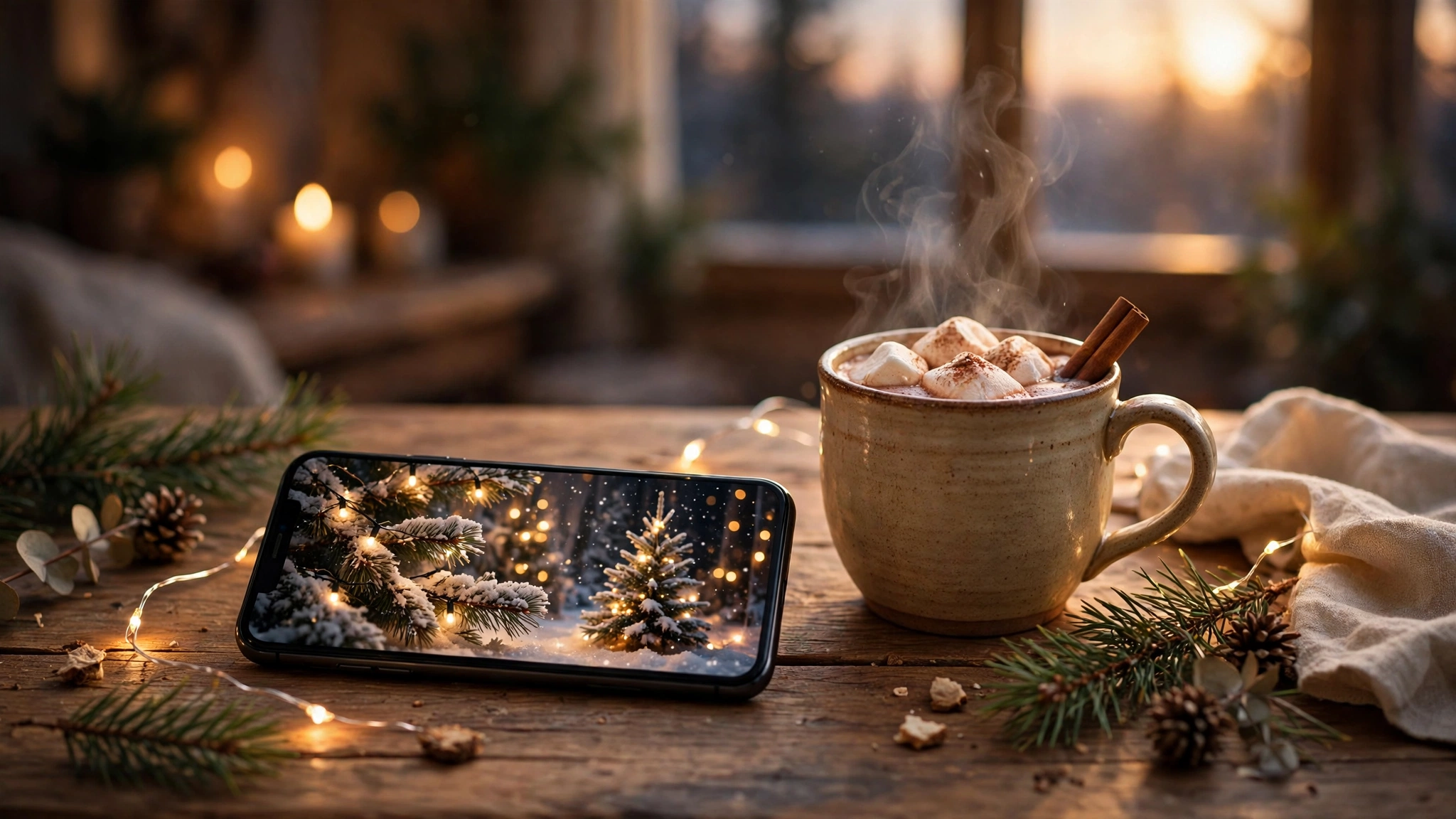
Your phone is the thing you look at most, so it might as well look like December. A good christmas wallpaper iphone does more than decorate a screen: it sets the mood every time you pick the phone up, from the first snowy morning to Christmas Eve itself. The problem is finding one that actually fits an iPhone screen, looks sharp instead of stretched, and does not come with a watermark or a sketchy download. This guide covers the best styles for 2026, where to get them free and legally, and how to set them up so the clock and widgets sit exactly where they should.
- Use wallpapers sized for your iPhone model — modern iPhones need roughly 1290 x 2796 pixels or higher for a sharp lock screen.
- The best free sources are Unsplash, Pexels, and Apple’s own featured collections; avoid random download sites with watermarks.
- Pick darker or simpler images for the lock screen so the clock stays readable, and save busy patterns for the home screen.
- Live Photos and depth-effect wallpapers work on most recent iPhones — check your model before downloading.
- Change your wallpaper in Settings, or press and hold the lock screen to use the wallpaper gallery and Focus linking.
Christmas Wallpaper iPhone: The Styles People Actually Want
Christmas wallpapers fall into a few clear styles, and knowing which one you want saves a lot of scrolling. Cosy minimal is the most popular right now: a single pine branch, a string of warm lights on a dark background, or a snowy window with soft bokeh. These look expensive, keep the clock readable, and age well through the whole month. Then there is classic festive: full Christmas trees, red and gold ornaments, wrapped presents, and Santa illustrations. These are louder and more fun, and they work best on the home screen where the icons break the pattern up.
There is also the cute category — cartoon reindeer, gingerbread houses, snowmen, and pastel Christmas scenes — which is huge with younger users and great for kids’ phones. And finally, the elegant category: gold foil on deep green, white-on-white snowflakes, and watercolour winter scenes. These suit anyone who wants festive without the novelty. Pick the style first, then search for it by name, and you will find something good in minutes instead of an hour. If you want the same look across your home, our Christmas wallpaper aesthetic guide covers matching desktop and room decor.
Where to Find Free Christmas Wallpapers for iPhone
Start with the places that are free, legal, and high quality. Unsplash and Pexels both have large Christmas collections shot by real photographers, and everything there is free to download at full resolution. Search for “christmas lights”, “snowy pine”, or “christmas tree dark” and filter by portrait orientation. Apple’s own wallpaper gallery, built into iOS, includes seasonal collections each year, and the App Store features wallpaper apps around the holidays — stick to the ones with strong recent reviews and no subscription trap.
Pinterest is the other big source, and it is where most people actually find their wallpaper. Search for the exact style you want and save the images you like, then check the resolution before setting one — a 1000-pixel-wide image will look soft on a modern iPhone. Our cute Christmas wallpaper guide has more sources and style ideas in the same spirit.
What to avoid
Avoid wallpaper sites that make you tap through five pages of ads before the download button appears, and never install a wallpaper app that demands access to your contacts or photos to work. A wallpaper app needs photo-library access and nothing else. If a site’s images have a watermark baked into the middle, skip them — the watermark will sit right behind your clock forever.
How to Set a Christmas Wallpaper on iPhone
Setting a wallpaper takes about a minute once the image is saved to your Photos app. The easiest way is through the lock screen: press and hold an empty area of the lock screen, tap the plus button, choose Photos, and pick your image. You can pinch to zoom and drag to position it, and iOS will show you a preview with the clock on top, so you can see immediately whether the text is readable.
From Settings, the path is Settings, then Wallpaper, then Add New Wallpaper. From there you can set the same image for the lock screen and home screen, or different ones for each. A good rule is a darker, simpler image for the lock screen and a busier one for the home screen, where the app icons sit on top. If your image has a clear subject — a tree, a house, a person — try the depth effect, which lifts the subject in front of the clock. It only works on iPhones that support it, and only with photos that have a clear foreground, but when it works it looks genuinely impressive.
Matching wallpapers to Focus modes
iOS lets you link a wallpaper to a Focus mode, so your phone can switch to a calm Christmas scene when Work focus turns on and a fun one when it turns off. Set it up in Settings, then Focus, then pick a mode and choose a lock screen for it. It is a small touch, but it makes the phone feel like it is dressed for the season rather than just wearing one picture.
Getting the Size and Quality Right
Resolution is what separates a wallpaper that looks crisp from one that looks blurry. Modern iPhones have screens around 1290 pixels wide and 2796 tall, and the wallpaper needs to be at least that large — ideally larger, because iOS crops and shifts the image slightly for the parallax effect. A 1080p image will look acceptable, a 720p image will not. When you download from a site, check for a “download original” or “full size” option rather than the preview thumbnail.
Also mind the file type. JPEG is fine for photos, PNG is better for illustrations with flat colour and text. Live Photos can be used as live wallpapers on supported models: press and hold the lock screen and the image animates. A short video of falling snow or twinkling lights, saved as a Live Photo, is one of the nicest Christmas lock screens you can have — and it costs nothing if you record it yourself. Our Hello Kitty wallpaper guide covers the same sizing rules for character wallpapers.
Frequently Asked Questions
What size should a Christmas wallpaper for iPhone be?
At least 1290 x 2796 pixels for modern iPhones, and larger is better. Older models need less, but a high-resolution image will scale down cleanly on any model.
Where can I get free Christmas iPhone wallpapers?
Unsplash and Pexels are the best free sources, with full-resolution downloads and no watermarks. Pinterest is great for discovering styles, and Apple’s own wallpaper gallery has seasonal options built into iOS.
How do I set a Christmas wallpaper on my iPhone?
Press and hold the lock screen, tap the plus button, choose Photos, and pick your image. Or go to Settings, Wallpaper, Add New Wallpaper. You can set different images for the lock screen and home screen.
Can I use a Live Photo as a Christmas wallpaper?
Yes, on supported iPhone models. Save the Live Photo, choose it as your wallpaper, and press and hold the lock screen to see it animate. A short clip of snow or lights works beautifully.
Why does my wallpaper look blurry?
The image resolution is too low for your screen. Download the full-size original, not a preview thumbnail, and make sure it is at least 1290 pixels wide.
A christmas wallpaper iphone is a five-minute job that you will enjoy a hundred times a day. Pick a style you actually like, grab a high-resolution image from a proper source, and set it up so the clock stays readable. Then, when December rolls around and the phone lights up with snow and warm light, it will feel like the season started a little early — which is exactly the point.